
The hottest AI topic in recent weeks has been ChatGPT, as everyone shares their interactions with it or solutions to a variety of issues. People also offer their opinions on how well it can write code, but we won’t discuss that today. In this tutorial, we’ll use ChatGPT to build a website. Additionally, you might want to think about participating in one of our AI Hackathons if you want to build an app using ChatGPT and other cutting-edge technologies. So, stop waiting and start participating now!
Make a website with GPTChat
I started by inserting my prompt:
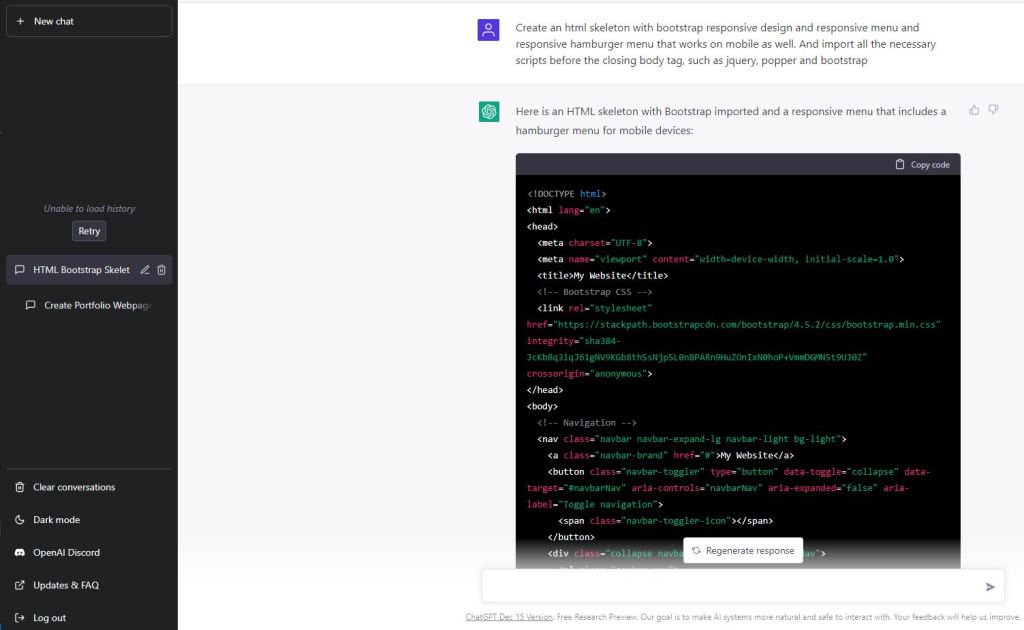
Make a mobile-compatible HTML skeleton with responsive bootstrap design, responsive menus, and responsive hamburger menus. And import all necessary scripts, including jQuery, Popper, and Bootstrap, before the closing body tag.
Although it appears that ChatGPT provided the right answer, let’s check it in Replit to be sure and continue working with it there.

It appears to be functioning, but the mobile menu does not. We don’t have a closing tag for one script, and if we check https://getbootstrap.com/docs/4.1/getting-started/introduction/, we can see that the bootstrap script is missing. It appears that ChatGPT chopped the skeleton a little. Let’s just fix it, then. Oh, and in accordance with the introduction of bootstrap, I will also update the imports.
<!DOCTYPE HTML>
<html lang="en">

<head>
<meta charset="UTF-8" />
<meta name="viewport" content="width=device-width, initial-scale=1.0" />
<title>My Website</title>
<!-- Bootstrap CSS -->
<link rel="stylesheet" href="https://cdn.jsdelivr.net/npm/bootstrap@4.1.3/dist/css/bootstrap.min.css"
integrity="sha384-MCw98/SFnGE8fJT3GXwEOngsV7Zt27NXFoaoApmYm81iuXoPkFOJwJ8ERdknLPMO" crossorigin="anonymous" />
</head>

<body>
<!-- Navigation -->
<nav class="navbar navbar-expand-lg navbar-light bg-light">
<a class="navbar-brand" href="#">My Website</a>
<button class="navbar-toggler" type="button" data-toggle="collapse" data-target="#navbarNav"
aria-controls="navbarNav" aria-expanded="false" aria-label="Toggle navigation">
<span class="navbar-toggler-icon"></span>
</button>
<div class="collapse navbar-collapse" id="navbarNav">
<ul class="navbar-nav">
<li class="nav-item active">
<a class="nav-link" href="#">Home</a>
</li>
<li class="nav-item">
<a class="nav-link" href="#">About</a>
</li>
<li class="nav-item">
<a class="nav-link" href="#">Contact</a>
</li>
</ul>
</div>
</nav>

<!-- Page content -->
<div class="container mt-5">
<h1>Welcome to My Website!</h1>
<p>
Lorem ipsum dolor sit amet, consectetur adipiscing elit. Proin ornare
magna eros, eu pellentesque tortor vestibulum ut. Maecenas non massa
sem. Etiam finibus odio quis feugiat facilisis.
</p>
</div>

<!-- Bootstrap JS -->
<script src="https://code.jquery.com/jquery-3.5.1.slim.min.js"
integrity="sha384-DfXdz2htPH0lsSSs5nCTpuj/zy4C+OGpamoFVy38MVBnE+IbbVYUew+OrCXaRkfj"
crossorigin="anonymous"></script>
<script src="https://cdn.jsdelivr.net/npm/popper.js@1.14.3/dist/umd/popper.min.js"
integrity="sha384-ZMP7rVo3mIykV+2+9J3UJ46jBk0WLaUAdn689aCwoqbBJiSnjAK/l8WvCWPIPm49"
crossorigin="anonymous"></script>
<script src="https://cdn.jsdelivr.net/npm/bootstrap@4.1.3/dist/js/bootstrap.min.js"
integrity="sha384-ChfqqxuZUCnJSK3+MXmPNIyE6ZbWh2IMqE241rYiqJxyMiZ6OW/JmZQ5stwEULTy"
crossorigin="anonymous"></script>
</body>

</html>
Good news, it’s working! Work on the content now. A portfolio website is something I’d like.
What should be the title?
What should the title be, first of all? I questioned ChatGPT because it is working What should the title be for my portfolio website?

Alright, I’ll go with Jane Doe, a novice AI user.
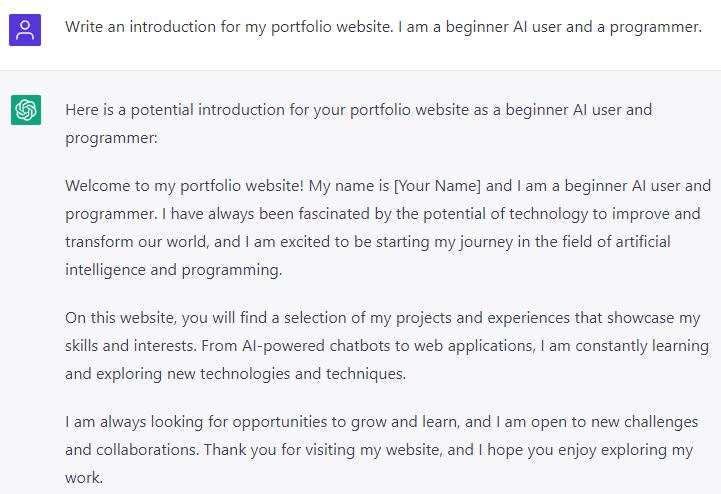
Introduction for the website
Publish a bio on my portfolio website. I am a beginning programmer and AI user.
Create an image element on that page
Show me a mountain-themed image element for the bootstrap page.
I’ll use a picture of a mountain from Lorempicsum.
<img src="https://picsum.photos/id/29/600/600" class="img-fluid rounded" alt="Mountain">
To keep things simple, this will be a single page. Let’s add href to the anchor tags that correspond to the sections and let’s add id to the home part.
<li class="nav-item active">
<a class="nav-link" href="#home">Home</a>
</li>
<li class="nav-item">
<a class="nav-link" href="#about">About</a>
</li>
<li class="nav-item">
<a class="nav-link" href="#contact">Contact</a>
</li>
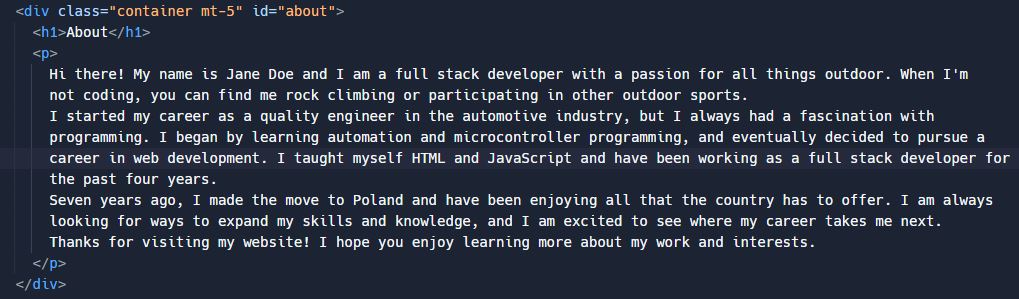
Making the about section
For a website’s “about” page, write an essay about me. I enjoy programming, outdoor sports, and rock climbing. Although I began my career in the automotive sector as a quality engineer, I have always been interested in programming. I began by automating and programming microcontrollers. I’ve lived in Poland for seven years. I began working on websites on my own four years ago using HTML and JavaScript. As a Full Stack Developer, I am currently employed.

Let’s add this to our section about.
This section must be as tall as the device. So I asked ChatGPT to demonstrate how to do it properly. How can I make a bootstrap element taller than the device?
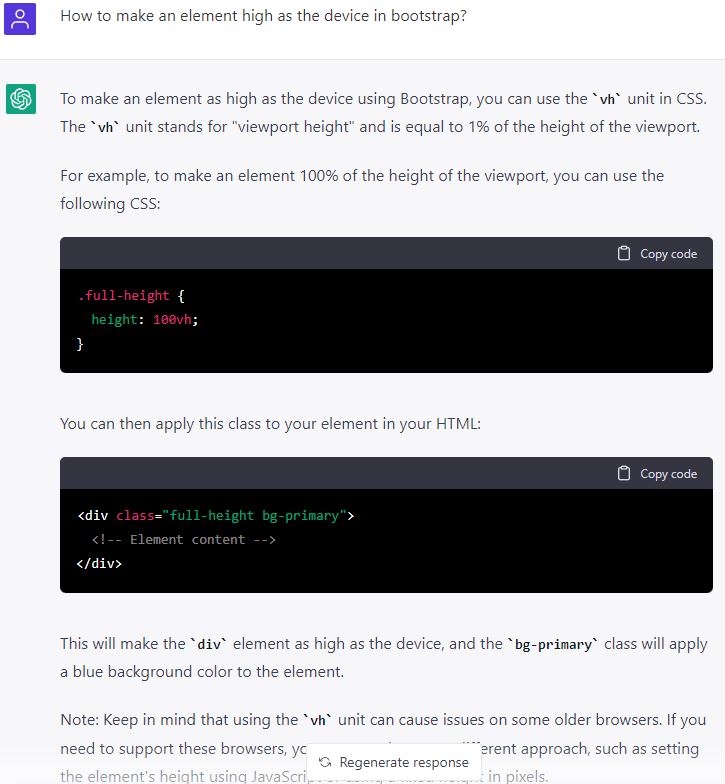
I’ll do as instructed and add the class to the div element that houses the section and paste the styling in the Head tag.

making a form for the contact section. (In this tutorial, we won’t make this work.)
Use Bootstrap to build a contact form with the input fields below. Message, name, and email.

<form>
<div class="form-group">
<label for="name">Name</label>
<input type="text" class="form-control" id="name" placeholder="Enter your name">
</div>
<div class="form-group">
<label for="email">Email</label>
<input type="email" class="form-control" id="email" placeholder="Enter your email">
</div>
<div class="form-group">
<label for="message">Message</label>
<textarea class="form-control" id="message" rows="3" placeholder="Enter your message"></textarea>
</div>
<button type="submit" class="btn btn-primary">Submit</button>
</form>
Therefore, let’s duplicate this and designate a section for the Contact form. Let’s finally design a lovely background for the website. What is a nice, subdued CSS gradient for an html website background?

I pasted the style tag into the head tag using the paste option.
body {
background: linear-gradient(135deg, #f5f7fa, #c3cfe2);
}
Ok, See The Results: – Click To Website Result
And it’s prepared! I’m in awe! While I don’t advise using ChatGPT to build your entire portfolio website, it can undoubtedly offer some helpful advice and help you produce better work. or at the very least, make it quicker and easier.
© 2023. All Rights Reserved. Designed by Animesh Mogha
 ChatGPT Open.AI
You must be logged in to post a comment.